Left Panel: Data & Tools
The left panel of the GriidAi workspace helps you manage sessions, data, and workspace tools.
What is a "Session"?
In GriidAi, a Session is essentially a dedicated project workspace. When you start a session, the platform creates an isolated container that records:
A Session helps maintain:
- Map State: The specific datasets you have loaded, the layers you have turned on or off, and the geographical area you were zoomed in on.
- Workflow Context: The AI's ongoing memory of what you are trying to achieve during that specific workflow.
- Project Work: The data, analysis, and results generated during your work are organized within the session.
Creating a New Session
When you want to start a brand new spatial analysis without mixing it up with your previous work, you need to create a New Session.
Dynamic Session Creation
GriidAi creates a session only when you begin meaningful work:
- Trigger Actions: Sending your first prompt, uploading a file, saving a drawn Area of Interest (AOI), or creating a session from the home page.
- Context Persistence: The session name is automatically generated from your initial action, while draft content and workspace settings are seamlessly carried forward. You can rename the session at any time.
Navigating and Reloading Session History
Every time you interact with the AI or the map, your current session is automatically saved to the Session History list below the 'New Session' button.
- How to switch between projects:
- Scroll through the list in the Left Panel to find your previous work. Sessions are typically ordered chronologically, with your most recent work at the top.
- Click the name of the session you want to return to.
- The Magic Reload: Once clicked, GriidAi will instantly restore your workspace. The chat tab will populate with your previous conversation, and the map will re-render all the layers and data you were actively working on in that exact session.
Managing Your Sessions
As you use GriidAi more frequently, your Session History will grow. To manage a session, open the three-dot menu next to its name.
- Renaming: If the platform assigned a generic name to your session, choose Rename from its menu. Give it a descriptive name, such as “Miami Building Footprints Analysis,” so you can find it easily later.
- Exporting Chat: The Export Chat option allows you to save the current GriidAi conversation for reference or sharing outside the platform.
- Deleting: If you ran a quick test or made a mistake and no longer need a session, use the dropdown menu to select Delete.
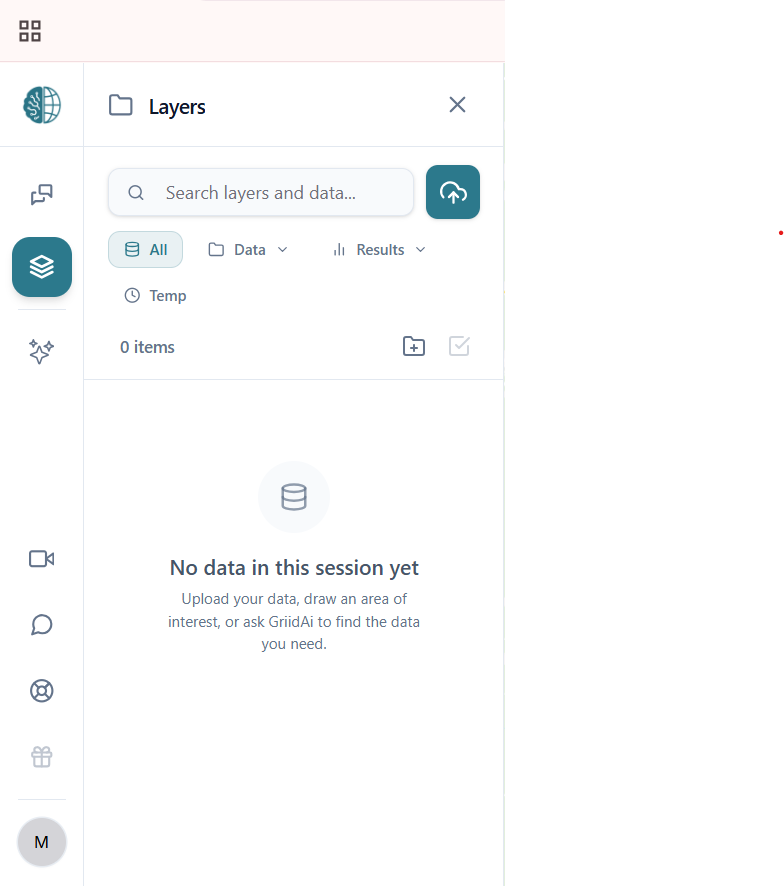
Expanded Layers Panel
Header
Displays the Layers title alongside a Close button. You can also close the Layers panel by clicking the Layers icon located at the far left of the utility panel.
Format & Data Filters
A horizontal scrollable list of filter pills to sort data types quickly:
- All: Contains all raster, vector, tabular, and AOI data.
- Data: Includes supported vector, raster, AOI, and tabular data.
- Results: Contains exported raster, vector, and tabular data.
- Temp: Includes temporary files used by the agent to produce final outputs. These are not user-facing results.
Search Chats by Title and Message Content
You can search saved sessions by their title or by words contained within the conversation text.
- How to Search: Open the Sessions area, type a keyword or title into the search box, and review matched results in real time.
- Relevance & Recency: Search results take both relevance and recency into account, allowing you to easily locate older sessions.
Far-Left Narrow Utility Toolbar
A vertical strip of icon buttons that control global workspace views:
- GriidAi Icon: Appears at the top which is useful for navigating you to on home page where you will get information of GriidAi's important features
- Chat Sessions: Open Session History to access previous sessions and the project layers associated with your work.
- Video Tutorials: Open the built-in resource hub for guided tutorials, feature walkthroughs, and training content.
Tutorial Categories
-
Getting Started Platform overview, workspace navigation, and onboarding essentials.
-
Data Management Uploading, organizing, managing, and exporting datasets.
-
Analysis Tools: Step-by-step guides for spatial analysis and geospatial processing workflows.
-
Advanced Features Tutorials covering raster symbology, Planetary Computer, external data access, and other advanced GriidAi capabilities.
-
Send Feedback Share your feedback about your GriidAi experience by providing a 1–5 star rating and selecting a feedback type, such as Idea, Suggestion, UI/UX, Bug, or Praise. Add your comments and click Submit to send your feedback.
-
User Profile & Account Menu: Located at the very bottom-left:
- Account Tier Display: Hover over your account avatar to view your active account tier (Starter, Analyst, or Geospatial AI Pro).
- Theme Selection: Open the account menu to select between Light, Dark, or Auto themes. When set to Auto, GriidAi dynamically mirrors your operating system's light/dark mode preference.